Getting started
Set up Enoughly in a few minutes with your pay, your main account, a safety net and your bills, see what Safe to Spend means, and what a typical week looks like.
Enoughly answers one question: how much can you spend before your next payday without coming up short? That number is Safe to Spend, and setup asks for just what it needs to work it out.
Set up Enoughly
The first time you open Enoughly, it explains how it works and then walks you through a few short steps. Tap Continue after each one, or Back to change an answer. Anything you enter can be changed later.
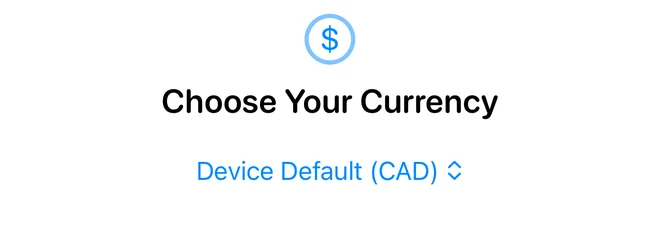
Currency. Enoughly uses your device's currency. Choose another if you're paid in a different one.
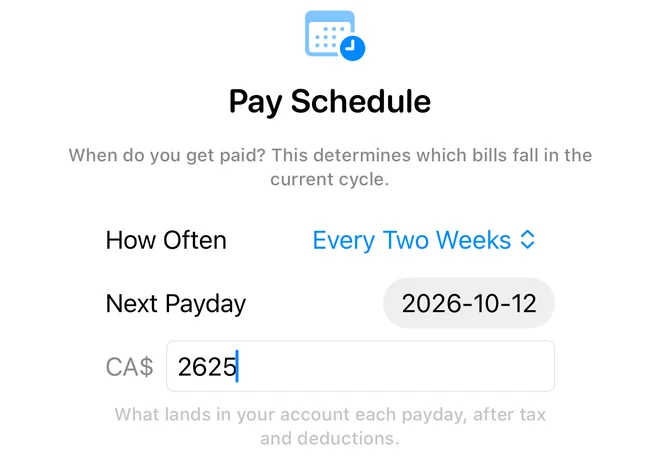
Pay schedule. Choose how often you're paid, tap Choose Date for your next payday, and enter your take-home pay: what lands in your account after tax and deductions.
Paid at different times, or by the job? Turn on My income is irregular. You then log money as it arrives, budgets follow calendar months, and Safe to Spend keeps every unpaid bill covered.
Your bank account. Start with the account your pay goes into. Give it a name and enter the balance your bank shows right now (put a minus sign in front if it's overdrawn). Tap Add Another Account for savings or other accounts.
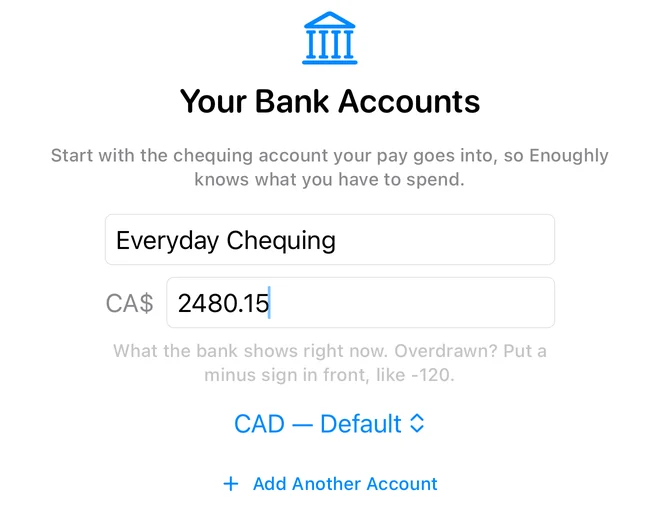
Money that's already spoken for, like an emergency fund, shouldn't count as spendable: turn off Include in Safe to Spend for that account. This balance is your starting point; How balances work explains what moves it from here.
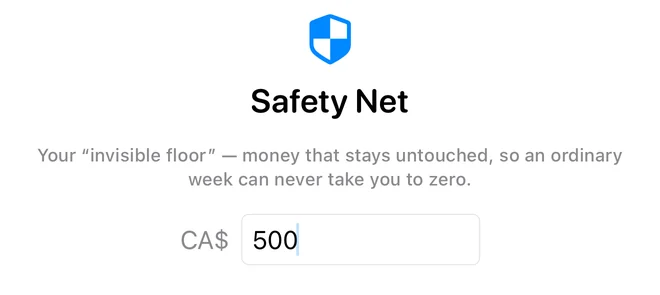
Safety net. The amount you never want your accounts to drop below. Safe to Spend leaves it untouched, so an ordinary week can't take you to zero.
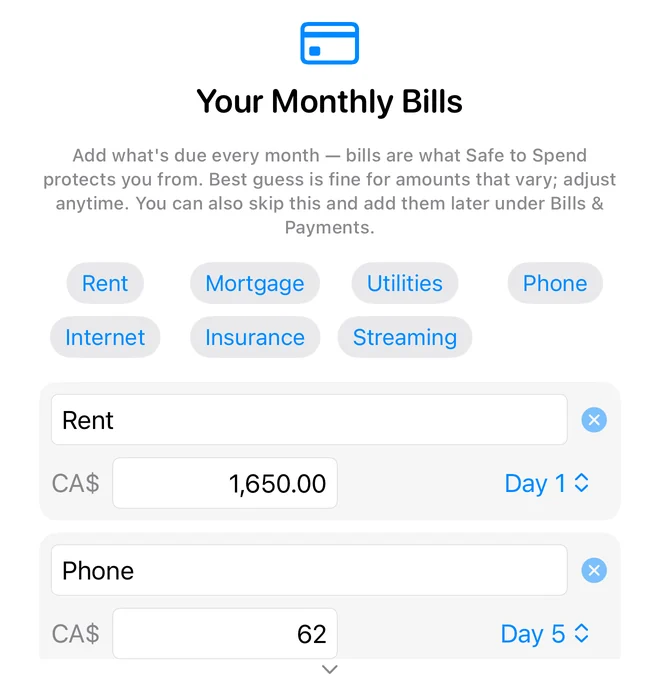
Monthly bills. Tap a suggestion such as Rent or Phone, or Add a Bill, then enter the amount and the day of the month it's due. A best guess is fine for bills that vary. A bill due after the 28th is due on the last day of shorter months.
Credit cards and loans. Add what you owe on each card or loan, its monthly payment and due day, so Safe to Spend sets the payments aside. None? Just continue. A card's minimum payment starts at 2% of the balance or 25 in your currency, whichever is more; set its real minimum, rate and limit later in Accounts.
You're all set. Tap Get Started, or Import Bank File to bring in your recent transactions first. Importing now fills in your history, so Spending and Cash Flow have something to show from day one. See Importing from your bank.



Your Dashboard
The Dashboard opens on your Safe to Spend number, with what goes into it underneath: the cash in your accounts, what's due before payday, and your safety net. It also shows when your next payday is.

The label above the number says Healthy when you have room, Caution when Safe to Spend is 50 or less (in your currency), and Critical below zero. Tap the eye to hide every amount, for example when someone's looking over your shoulder.
A typical week
Enoughly has no bank connection, which sounds like a lot of typing. In practice it isn't:
As you spend: add a purchase in a few seconds. Go to Activity and tap +. On iPhone, Apple Pay purchases can log themselves; see Log Apple Pay taps automatically. Forgot one? The weekly import catches it.
When you pay a bill: touch and hold it in Bills & Payments (right-click on a Mac) and choose Mark as Paid… Or let the weekly import spot the payment for you.
Once a week, about two minutes: download your bank's file, import it, and check the balance against your bank before you close the importer. See Importing from your bank.
That's the whole routine. Safe to Spend stays honest during the week from what you log, and the weekly import trues everything up. The two minutes are also when you actually see where your money went, which is the habit every budget that works is built on.
Change things later
Accounts: go to Accounts and tap + to add one, or tap an account to edit it.
Bills and loans: go to Bills & Payments (on iPhone, under More) and tap +, or tap a bill to edit it.
Pay schedule, safety net and currency: Settings, Income & Money.
The how-it-works tour: Settings, App, How Enoughly Works.
Look around with sample data first
Not ready to enter your own numbers? On the welcome screen, tap Explore with Sample Data to try Enoughly with a realistic demo. On Apple devices signed in to iCloud, sample data syncs like real data, and Enoughly warns you first. When you're ready, erase it with Settings, Data, Reset All Data… and set up for real. Reset erases Enoughly on every device signed in to the same Apple Account.
On Mac and iPad
Setup is the same everywhere. On a Mac or iPad, Accounts, Activity and Bills & Payments are in the sidebar.
Still stuck?
Tell us your device (Mac, iPhone or iPad) and what you were trying to do. A person reads every email.
Email support@nouraish.comOr browse the quick answers on the support page.