Backups, sync and switching devices
Keep a safe copy of everything, get your data out as a spreadsheet, keep your Apple devices in sync, and move to a new phone.
Enoughly keeps your data on your devices and, on Apple devices, in your own iCloud. There's no Enoughly account and no copy on our servers, so a backup is the one copy you control. It takes a minute, and it's how you move to a new phone.
Make a backup
A backup holds everything: accounts, bills, transactions, budgets, rules, settings and the Log. It's encrypted with a password you choose.
Open Settings (on iPhone, tap More, then Settings) and choose Data.
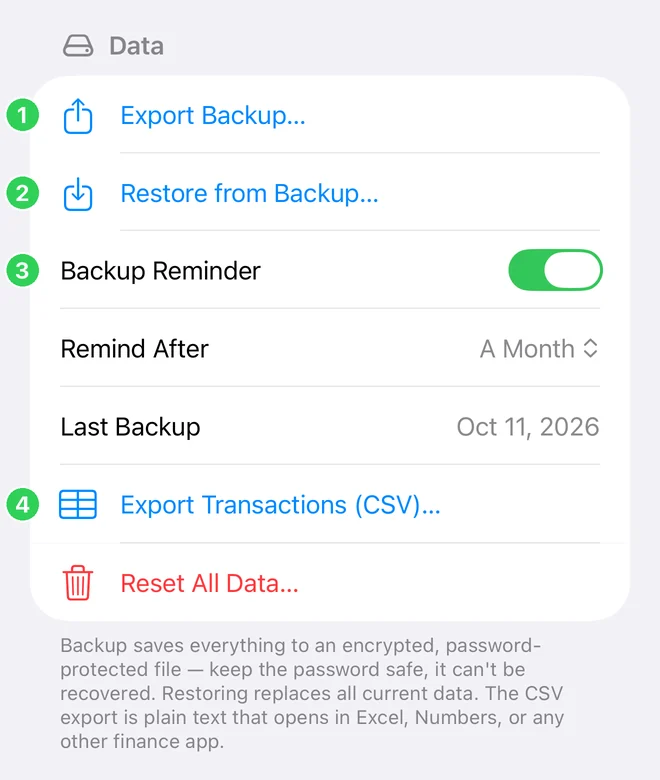
1 Make a backup.
2 Restore one.
3 The reminder.
4 A spreadsheet of your transactions.Tap Export Backup…
Choose a password of at least 8 characters, type it again to confirm, and tap Encrypt & Export.
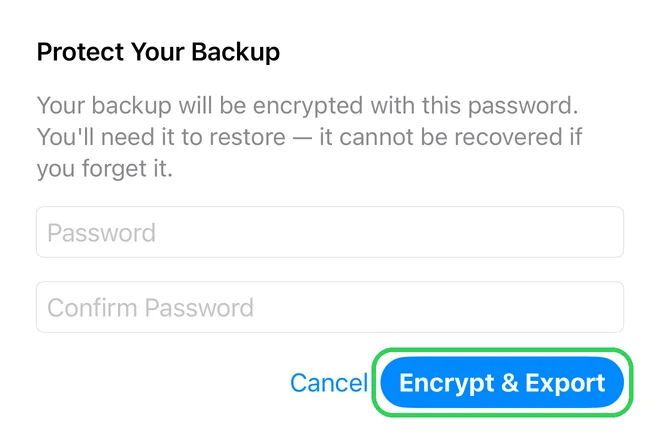
Choose where to save the file. Its name starts with Enoughly-Backup and the date.


Save the file somewhere that isn't the device itself, so it survives losing the phone: iCloud Drive, another cloud drive, a USB drive, or an email to yourself. Because the file is encrypted, anyone who finds it sees nothing without the password.
Backup reminders
Backup Reminder is on unless you turn it off. When your last backup is older than a month (or a week, if you choose that under Remind After), the Dashboard says so. Tap the reminder to go straight to Settings.

On Apple devices, a backup made on any of your devices counts, so you won't be reminded on the iPad after backing up on the Mac.
Restore a backup
Restoring replaces everything in Enoughly with what's in the backup. On Apple devices that share an iCloud account, the restored data replaces what's on all of them, because they sync.
Go to Settings, Data, and tap Restore from Backup…
Enoughly warns that this replaces all current data. Tap Choose File…
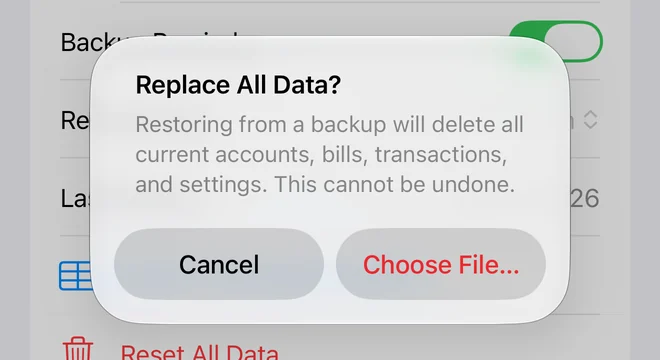
Pick the backup file, enter its password, and tap Restore.

On a new device, you don't need to set anything up first. The welcome screen has its own Restore from Backup button.

Get your transactions as a spreadsheet
Settings, Data, Export Transactions (CSV)… saves every transaction as a plain CSV file that opens in Numbers, Excel, Google Sheets or another finance app. It's for looking at or moving your transactions, and it isn't encrypted. To move everything to another device, use a backup instead: a CSV can't restore your accounts, bills or settings.
Sync between Mac, iPhone and iPad
Enoughly syncs through your own iCloud. Sign in to the same Apple Account on each device, with iCloud turned on, and changes appear on the others on their own. There's nothing to set up in Enoughly and no account to create.
When you install Enoughly on another Apple device, it opens on Checking iCloud… and waits for your data to arrive, usually within a minute or two (longer for years of history). Only tap I'm New — Set Up from Scratch if you've never used Enoughly with this Apple Account.
If a change doesn't show up on another device, check that both are signed in to the same Apple Account, that iCloud is on, and that each has an internet connection. Then open Enoughly on both and give it a minute.
On a Mac
The steps are the same. Export Backup… opens a window to choose where to save the file, and Restore from Backup… opens one to pick it. Settings is in the sidebar, or press Command-0 (it's in the Navigate menu).
Still stuck?
Tell us your device (Mac, iPhone or iPad) and what you were trying to do. A person reads every email.
Email support@nouraish.comOr browse the quick answers on the support page.