Importing from your bank
Bring in transactions from a bank file or a screenshot, and what Enoughly does with them: skipping repeats, matching what you logged, spotting bill payments and cleaning up duplicates.
Enoughly doesn't connect to your bank. Instead, every week or so you download a file of recent transactions from your online banking and import it. It takes a couple of minutes, and it's safe to repeat: Enoughly never adds the same transaction twice.
Download a file from your bank
In your online banking, open the account and look for an option to download or export its transactions. Banks call it different things: Download, Export, or something under Statements.
Pick a Quicken file if your bank offers one. It may be listed as QFX, QBO, OFX, Quicken, QuickBooks or Microsoft Money; they're all the same standard format. Every bank's Quicken file works in Enoughly. Each transaction carries an ID from the bank, which makes repeat imports exact, and the file usually includes your balance on the day you downloaded it.
CSV works for many banks, but not all. CSV has no standard; every bank lays it out its own way. Enoughly recognizes several common layouts. If yours isn't one of them, the import stops with a message that the columns aren't recognized. Nothing is added. Try the Quicken format instead, or email us the name of your bank so we can add its layout.
Excel and PDF files can't be imported. Choose CSV or Quicken instead.
Pick a date range that starts a few days before your last import. Overlapping is fine.
Import the file
Go to Activity and tap Import Bank File, the first button at the top. It's also in Settings.
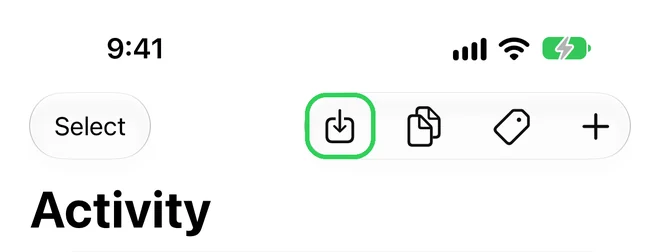
Tap Choose Account and pick the account the file belongs to. Each file holds one account's transactions, so import each account's file separately. The account then shows at the top with its balance and the day you last imported into it, so you can tell at a glance it's the right one.
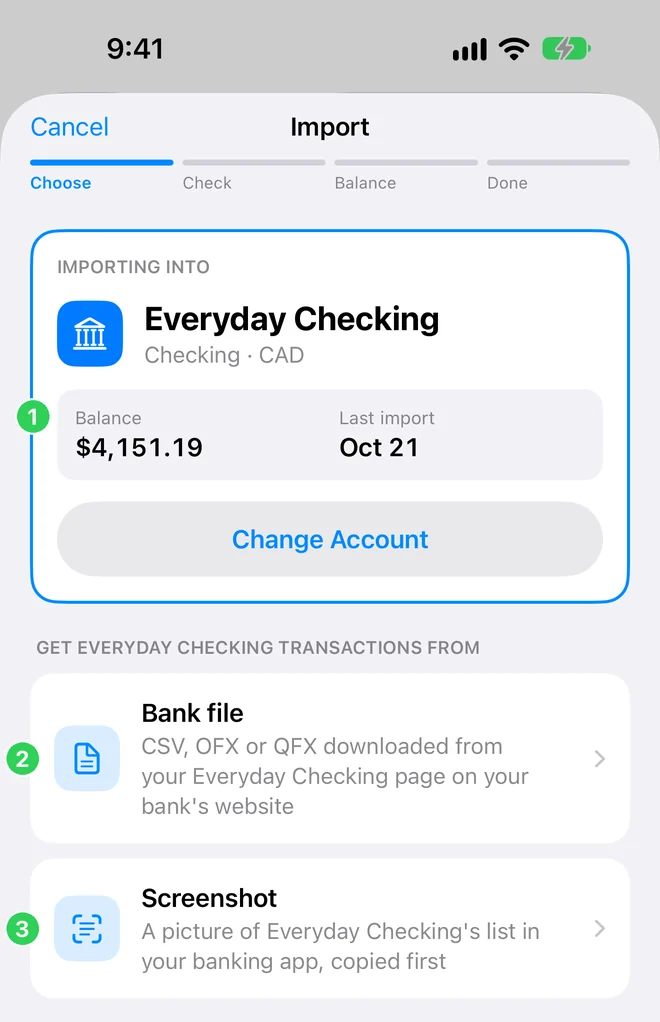
1 The account the transactions go into. Change Account picks another.
2 Import a file.
3 Or a screenshot (see below).Tap Bank file and pick the file you downloaded. On iPhone and iPad it's usually in the Files app, in Downloads.
Enoughly adds the rows straight away. If one looks like a payment on a bill or loan you track, it asks about it, one question at a time (see Confirm bill and loan payments below).
Next it asks whether the account's balance matches your bank. Check it while your banking is still open (see Update the balance after an import), or tap Skip.
The last screen sums up what the import did. Tap Done.
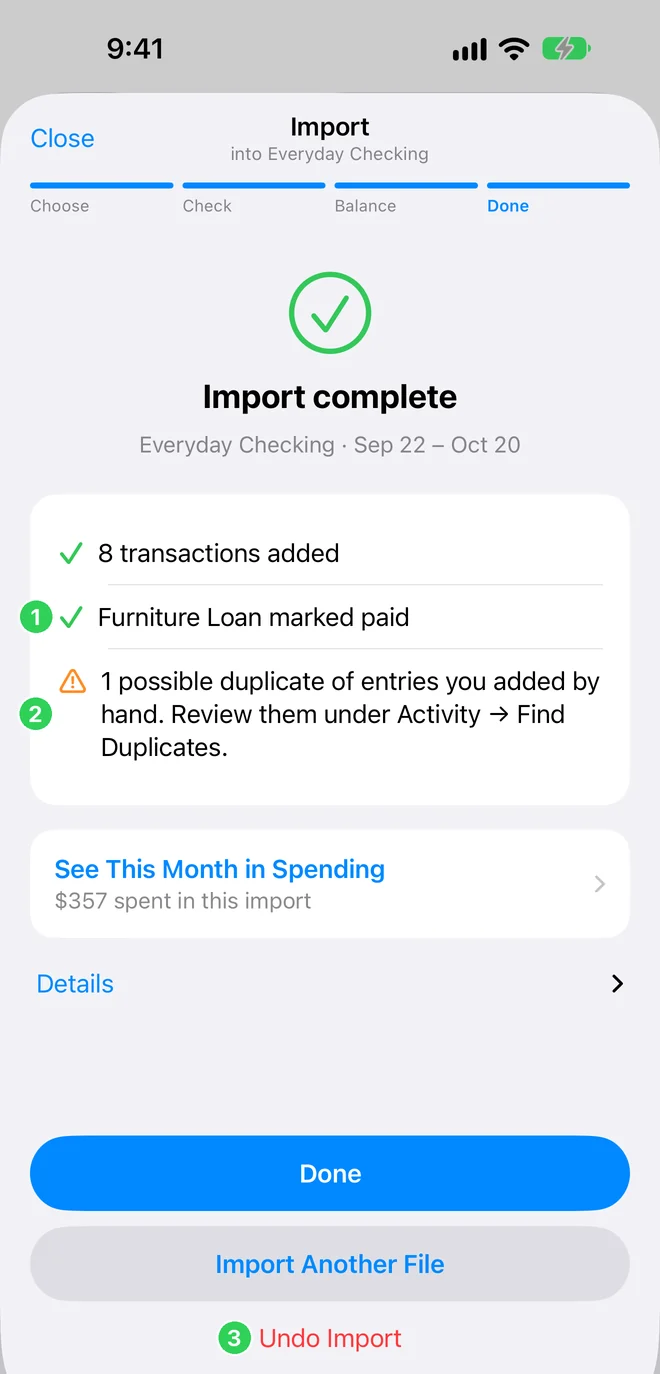
1 A bill payment you confirmed.
2 Something that may be in twice: see Clean up duplicates below.
3 Takes the whole import back.Tap Details to see which rows moved the balance, which were already in it, and which were matched to purchases you'd logged by hand rather than added again. How balances work explains those in full.


Picked the wrong account? If most of a file's rows are already in a different account, Enoughly stops before adding anything and asks, for example, "This looks like your Savings". Tap Import into Savings, keep the account you picked, or choose another file.
Your category rules sort each row as it comes in. Transfers between your own accounts and credit card payments are filed as Transfer and Credit Card Payment, so they don't count as spending. To add or change rules, tap Category Rules (the tag button) at the top of Activity.
Importing the same dates again is safe
Enoughly remembers every row it has imported. Import the same file again, or a new one that overlaps the last, and the rows it already has are skipped. Details on the last screen says how many.

Purchases you logged by hand are matched too. When a bank row has the same amount within three days of something you logged, Enoughly keeps your entry, with its category and notes, and doesn't add the bank's copy.
Confirm bill and loan payments
When an imported row looks like a payment on a bill or loan you track, Enoughly asks about it before going on. It needs the right amount, give or take, within a week of the due date, and a row that reads like a payment or names the bill. For a loan, Enoughly estimates how much of the payment is interest.

2 Links the payment to the loan.
3 Keeps the question for later.
Yes, It's the Payment links the row to the bill or loan and marks this cycle paid. On a loan, it also splits off the interest and lowers the loan's balance by the rest. If the row belongs to the previous cycle, Yes lowers the loan's balance without marking the current cycle paid.
No leaves everything as it was.
Decide Later keeps the question. The Dashboard shows Imported Rows to Check until you answer it, for up to two weeks. Skip All at the top leaves every remaining question for later.
Enoughly asks two other questions the same way. On a credit card or line of credit, it may ask whether a charge is interest; Yes files it as Interest, so it shows in Spending. And if the same merchant charged the same amount twice on the same day, it asks whether you were charged twice; Flag One to Dispute marks one in Activity so you remember to ask your bank.
Confirming changes only the bill or loan. The row's effect on the account it came out of follows the usual rules in How balances work. If you later delete, recategorize or remove the row as a duplicate, the principal goes back on the loan.
Once you've confirmed a payment, Enoughly remembers who it was paid to. Later rows from the same payee are offered for that bill or loan even when the amount or date shifts a little.
Clean up duplicates
Sometimes the same purchase ends up in an account twice: once from your bank and once logged by hand. Usually that's because you logged it after the bank's row had already been imported, so there was nothing to match it to. The last screen of an import and the Dashboard tell you when there's a likely pair.
Go to Activity and tap Find Duplicates, the button next to Import Bank File.
Each pair shows the entry Enoughly keeps (with a green check) and the copy it would remove (crossed out, with a bin). Dates a day or two apart are normal: you log a purchase when it happens, and the bank records the day it posted.
For each pair, tap Remove to delete the copy, or Not a Duplicate if they really are two purchases. Show in Activity shows both on the account's timeline if you're not sure.

To remove every pair at once, tap the button at the top. When one side of a pair is your own entry, Enoughly keeps it, with its category and notes, and removes the imported copy. If removing a copy changes a balance, the Log records it.
Import a screenshot instead
If your bank makes downloading difficult, or doesn't offer it for an account, a screenshot of its transaction list works too.
In your banking app, show the transactions and take a screenshot.
Copy it. On iPhone, tap the preview that appears in the corner, tap Done, then Copy and Delete. On a Mac, press Shift-Control-Command-4 and drag across the list to copy just that part.
In Enoughly, open Import Bank File, choose the account, then tap Screenshot (if your device asks whether Enoughly may paste, choose Allow Paste).
Check the rows Enoughly read. Each one has a payee, date, amount, and Expense or Income, and you can change any of them. Tap a row's green check to leave it out. Compare the total with your screenshot: text recognition can misread a digit.
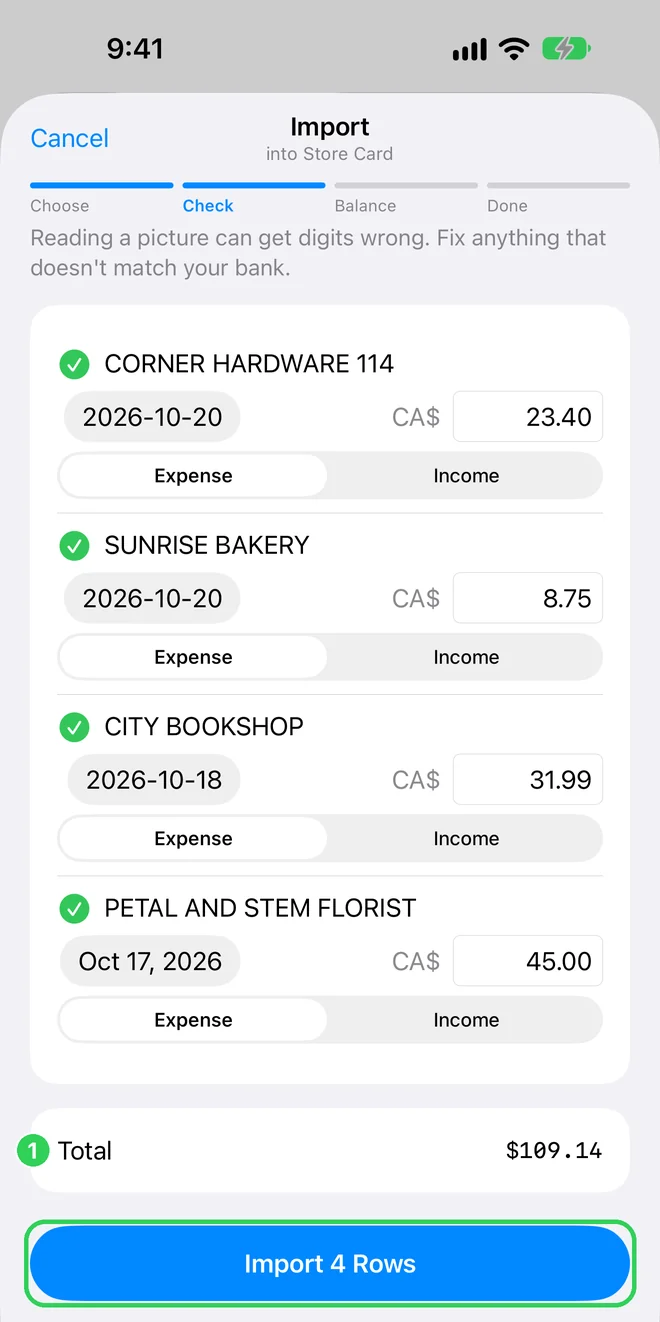
1 Compare this with your screenshot. Tap Import 4 Rows (the number is however many rows are ticked). From there it's the same as a file: any questions, the balance, then the summary. Discard throws the rows away instead.

The picture is read on your device and never leaves it. On a credit card, plain or "+" amounts are read as charges, and amounts with a minus sign, payments and refunds lower what you owe. If you import the same transactions later from a bank file, the ones you pasted are skipped.
On Mac and iPad
The pictures in this guide are from an iPhone. Elsewhere:
Mac: Import Bank File is at the top of Activity and in Settings. Bank file opens a window where you pick the file, usually from your Downloads folder.
iPad: the same as iPhone. Activity is in the sidebar.
Still stuck?
Tell us your device (Mac, iPhone or iPad) and what you were trying to do. A person reads every email.
Email support@nouraish.comOr browse the quick answers on the support page.