How balances work
Where an account's balance comes from, what moves it, and how to bring it back in line with your bank in a few taps.
Enoughly has no connection to your bank, so it never sees your real balance. Instead, each account starts from a number you gave it, the last time you looked at what your bank says, and adds everything that has happened since.
That's the whole idea. The rest of this guide covers what counts as "since", how to update the balance when it drifts, and where to look when a number surprises you.
What changes a balance
Anything you add by hand counts: a purchase, a paycheck, a transfer, or a bill you mark as paid. It counts from the moment you add it, because Enoughly assumes your bank's number didn't include it yet. That's true even if you give it an earlier date. A date in the future is different: the transaction waits for that day before it changes the balance. On iPhone, purchases logged by the Apple Pay automation count the same way.
Imported rows count only if they're dated after the day you last updated the balance. Rows from that day or earlier were already in the number your bank gave you, so adding them again would count them twice. They still fill in your history, your spending reports and your budgets.
A bank row that matches something you logged by hand isn't counted twice. If you logged a purchase and the bank file has the same amount within three days of it, Enoughly pairs them up and keeps your entry.
The last screen of every import says which of these happened, under Details:

2 Older rows were already in it.
3 A purchase you'd logged was matched, not added again.
Update the balance after an import
The easiest moment to check a balance is right after importing a bank file, while your banking app or website is still open. The importer asks about it as its last question.
Go to Activity and tap Import Bank File, the first button at the top.
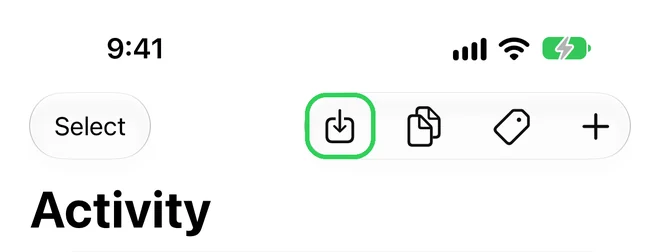
Tap Choose Account and pick the account, then tap Bank file and choose the file you downloaded from your bank. Answer any questions about bill payments (Importing from your bank covers those).
Enoughly asks Does this match your bank? Quicken files (QFX, QBO and OFX) usually include the bank's balance on the day you downloaded them, so Enoughly shows it next to its own balance after the import, and how far apart they are.
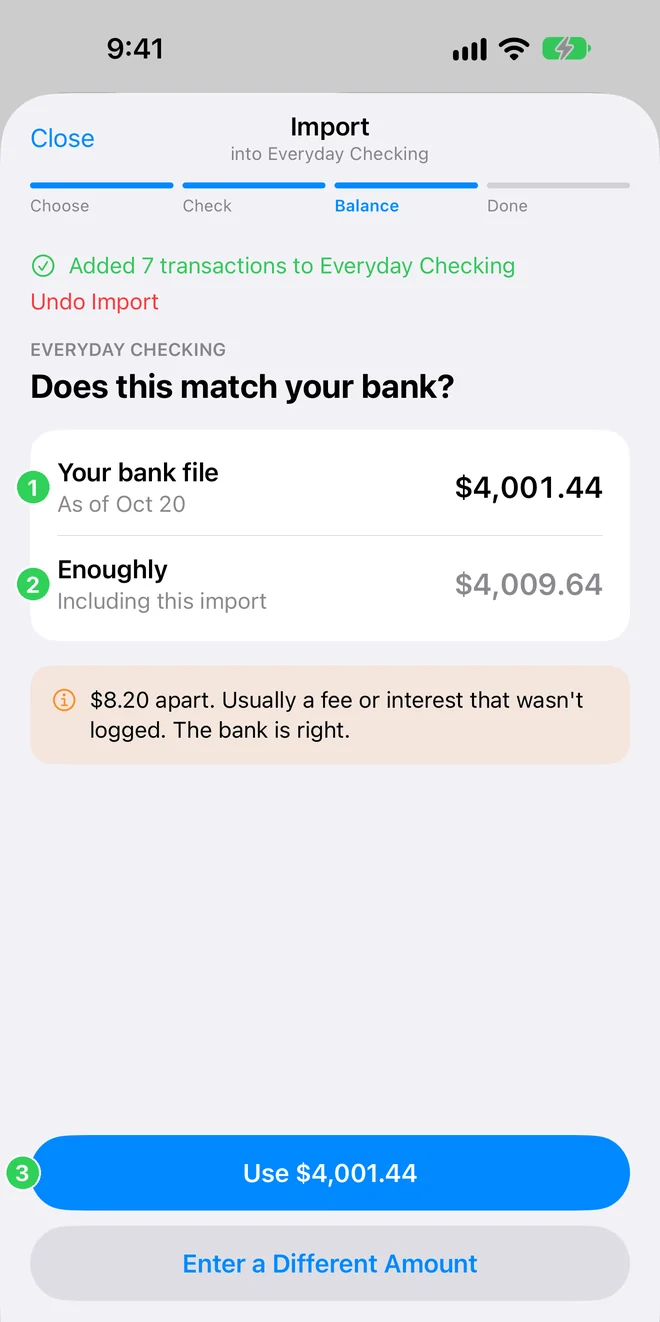
1 The balance in your file, and the day it's from.
2 Enoughly's balance with this import.
3 Start from the bank's number.Tap Use followed by the bank's number. If the two already match, the button reads Confirm instead. Tap it anyway: it records that you checked.
CSV files usually don't include a balance. For those, or when your bank shows a newer number than the file (tap Enter a Different Amount), Enoughly asks What does your bank say? Type the balance your bank shows. If it's different, Enoughly says by how much. Tap Update Balance to, followed by your bank's number.
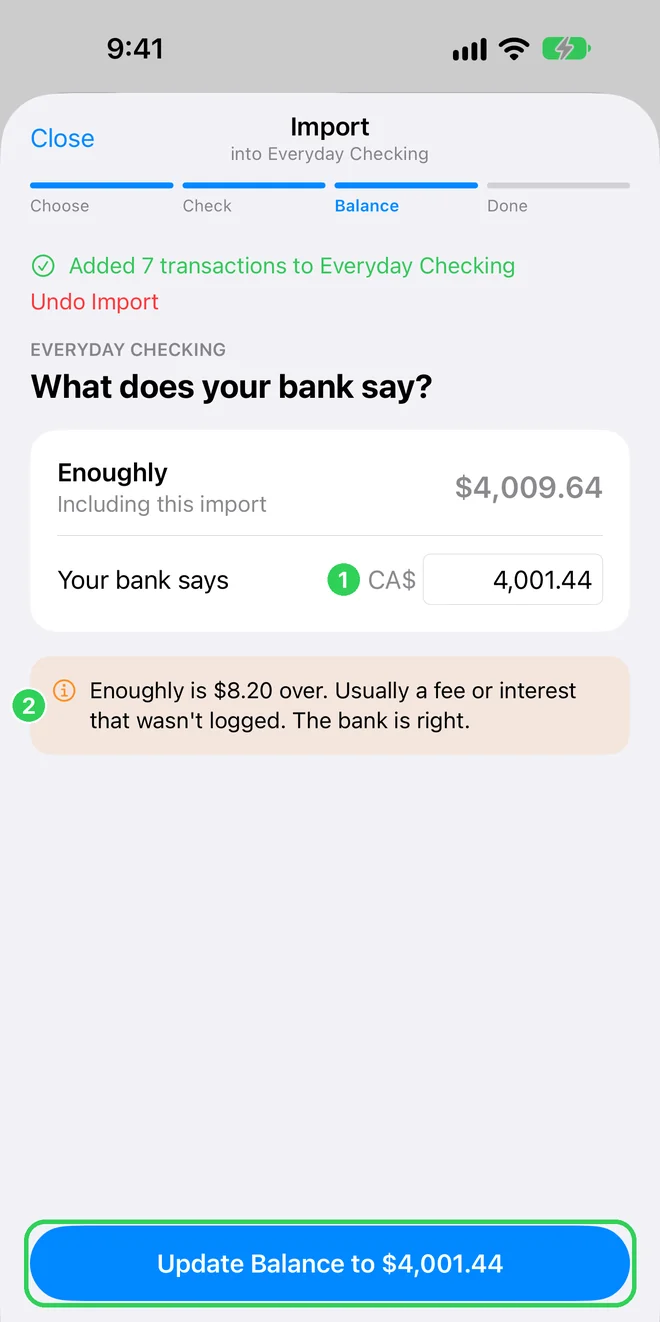
1 Type what your bank shows.
2 How far off Enoughly was.The last screen confirms the new balance, and from now on Enoughly counts from the bank's number. Tap Done.


Not near your bank right now? Tap Skip. You can update the balance any time, as below.
Update the balance any time
You don't need an import to update a balance. Do this whenever you're looking at your bank and the numbers don't match.
Go to Accounts and tap the account.
Type what your bank says into Balance (on a credit card or line of credit, it's Balance Owed: what you owe). The note under it says when you last updated it.
Tap Save.

Check Due reminders
When an account hasn't been updated in three weeks and something has changed since, Accounts marks it Check Due in orange, with the date of the last update. The Dashboard reminds you too. Update the balance using either method above and the reminder goes away.

Why didn't it match?
A difference means something reached your bank but not Enoughly: a bank fee, interest, a cash withdrawal, or a purchase you didn't log. A few dollars here and there is normal. Updating the balance fixes it. Enoughly doesn't invent a transaction to cover the gap; it starts again from your bank's number and notes the difference in the Log.
If the gap is large, it's worth a look before you update:
The same purchase twice. If you logged a purchase and the bank's row came in more than three days away, or for a slightly different amount, both can end up in the account. Go to Activity and tap Find Duplicates (the button next to Import Bank File) to review likely pairs.
A starting balance that was a guess. If you made up an account's first balance and then imported its older history, those older rows didn't count. Update the balance to what your bank says now, and it's right from then on.
A transfer recorded on one side only. Money moved between two of your accounts should be a transfer, so it leaves one and arrives in the other.
See what changed in the Log
Every balance update is written to the Log, with the old and new balance, what prompted it, and how far off Enoughly was. Imports, bills marked paid and loan payments are there too. On iPhone, tap More, then Log.

Entries are kept for six months. If a number ever looks wrong, the Log usually names the moment it changed. The support page has more on reading the Log.
On Mac and iPad
The pictures in this guide are from an iPhone. Everything works the same way elsewhere:
Mac and iPad: Accounts, Activity and the Log are in the sidebar. Import Bank File is at the top of Activity, and also in Settings. Click an account on the Mac, or tap it on iPad, to edit its balance.
If you use Enoughly on more than one Apple device, a balance update on one reaches the others through iCloud, and the most recent update wins.
Still stuck?
Tell us your device (Mac, iPhone or iPad) and what you were trying to do. A person reads every email.
Email support@nouraish.comOr browse the quick answers on the support page.