Overdraft warnings and closing accounts
Get warned before one account goes below zero, tell Enoughly which account pays each bill, and close an account you no longer use without losing its history.
Overdraft warnings
Safe to Spend adds your accounts together, so one account can be heading below zero while the total still looks fine: the rent comes out of a joint account with too little in it, say, while your main account is flush.
So the Dashboard also runs each of your everyday accounts forward on its own, over the next 30 days: the bills and card payments that come out of it, and the pay that goes into it. If one will go below zero, a warning appears under Safe to Spend.

It says which account, the day it goes below zero and by how much, the payment that takes it there, and how much to move from another account to avoid it. Once you move the money (and the transfer is in Enoughly) or the plan changes, the warning goes away on its own. Overdrawn instead of Overdrawn Soon means the account is below zero already.
Tell Enoughly which account pays each bill
The forecast needs to know where each payment comes from. Every bill, loan and card has a Paid From setting: tap it in Bills & Payments (cards in Accounts) and look for Paid From.

Left on Automatic, Enoughly uses the account the bill was last paid from, or otherwise the one your pay goes into. Choose an account yourself when that's not right. Mark as Paid and Make Payment also start from this account.
A bill you put on a credit card (internet or streaming on a cash-back card, say) can name the card under Paid From. It then lands on the card on its due date instead of leaving a bank account, so the overdraft warning and Safe to Spend leave it out: the card's own payment covers it. Bills & Payments shows it as On the card.
Close an account instead of deleting it
When you close an account at your bank, close it in Enoughly too, rather than deleting it. Deleting removes its whole history; closing keeps every transaction, so your reports, spending history and transfers still add up. A closed account just leaves the Dashboard, Safe to Spend, the account pickers, imports and payoff plans.
In Accounts, tap the account, or touch and hold it for its menu.
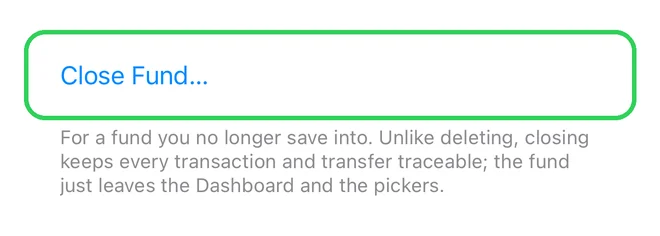
At the bottom of its settings, tap Close Account…
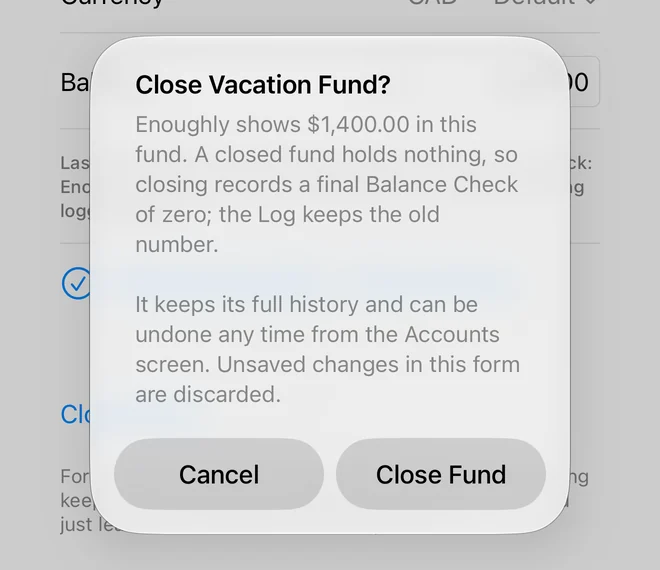
Confirm.


The button's name fits the account: Close Account for a bank account or card, Close Fund for a savings fund, Stop Tracking for cash, and Mark as Sold for a car or property.
If Enoughly still shows money in the account, closing records a final balance of zero, and the Log keeps the old number.
Reopen a closed account
Closed accounts move to a Closed group at the bottom of Accounts.

To bring one back, open it and tap Reopen Account (or Reopen Fund, Track Again, or Mark as Not Sold, to match). It returns to the Dashboard and Safe to Spend straight away.
On Mac and iPad
Everything works the same way. On a Mac, right-click an account in Accounts for its menu.
Still stuck?
Tell us your device (Mac, iPhone or iPad) and what you were trying to do. A person reads every email.
Email support@nouraish.comOr browse the quick answers on the support page.